Key takeaways
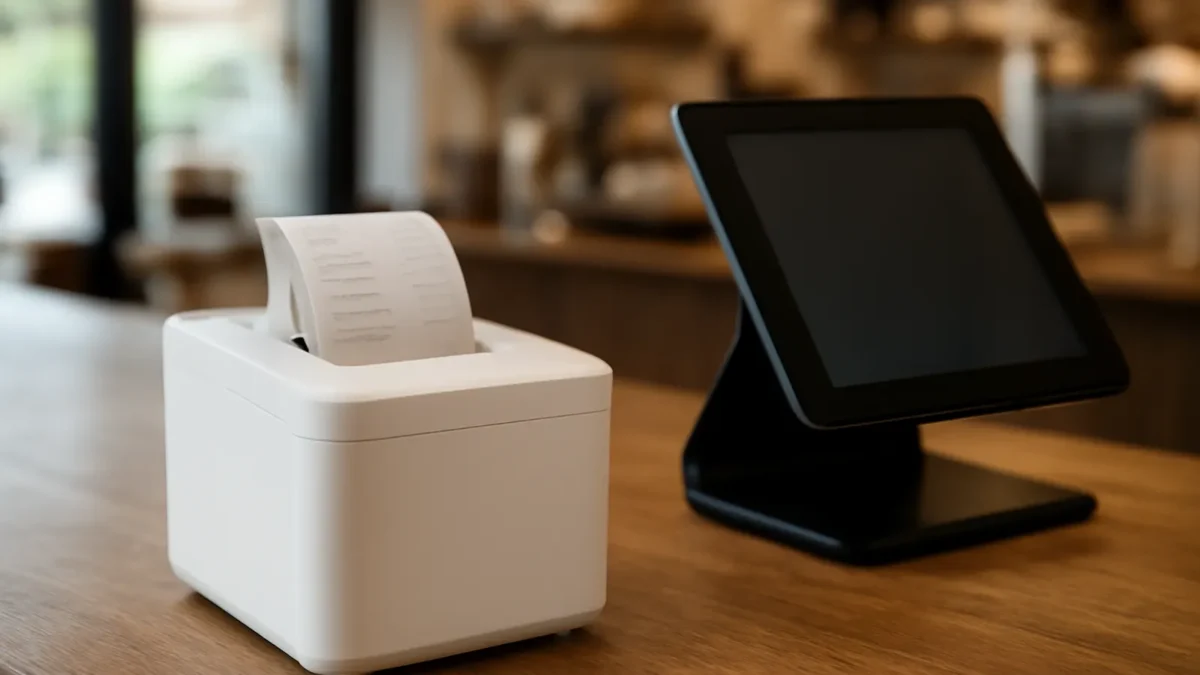
- Most outlets use a thermal receipt printer at the counter: fast, quiet and with no ink or ribbon to replace. Hot, greasy kitchens sometimes use impact printers instead.
- 80 mm paper is the standard for counters and kitchens. 58 mm suits portable printers and small counters.
- Choose the connection by where the printer sits: USB for one fixed till, Ethernet for kitchens, Wi-Fi or Bluetooth for tablets and mobile set-ups, and cloud printing for online orders and several printers.
- A digital receipt is often enough for walk-in customers, but IRAS rules still apply: issue a receipt if a customer asks, and a tax invoice to GST-registered customers.
Last checked against Epson, Star Micronics and IRAS pages: September 2026. Printer prices change often and depend on the package, so ask each vendor, including us, for a written quote.
What a POS receipt printer does
A POS receipt printer prints three kinds of slips in most F&B and retail outlets:
- Customer receipts at the counter or table.
- Order tickets for the kitchen, bar or drinks station, sent automatically when an order is keyed or placed by QR.
- Reports such as the end-of-day summary, and sometimes queue numbers or labels.
The printer is only as useful as the POS behind it. The software decides which items go to which station, what language the ticket is in and whether a failed print is flagged. Before you pick hardware, read our restaurant POS hardware guide for how printers fit with terminals, cash drawers and kitchen screens. For the whole counter set-up, see our guide to POS machines in Singapore.
Thermal receipt printers: the default choice
A thermal receipt printer uses heat-sensitive paper, so there’s no ink or ribbon. It is fast and quiet, which is why it’s the standard for counters. Two widely used examples show what current models offer:
- Epson’s TM-m30III is a thermal line printer with a print speed of up to 300 mm per second at 203 dpi. It takes 80 mm and 58 mm rolls, has an IPX2 water-resistance rating, and Epson says its paper-saving technology cuts paper use by up to 49%. It supports full and partial cuts, and Epson lists Simplified and Traditional Chinese among its supported languages.
- Star Micronics’ TSP143IV prints at 250 mm per second, takes 80 mm paper as standard and 58 mm with a paper guide, and works with iOS, Android and Windows devices.
The trade-off is that thermal paper reacts to heat. Star Micronics itself notes that heat, humidity and grease can affect thermal printing in kitchens. For receipts that customers take away, that rarely matters. For kitchen tickets pinned above a wok station, it sometimes does.
Impact printers for hot kitchens
An impact (dot-matrix) printer strikes an ink ribbon onto plain paper. It’s slower and noisier, but the tickets don’t react to heat. Star Micronics describes its SP742 impact printer as built for kitchens where heat, humidity and grease can affect thermal printing. It offers two-colour printing, so modifiers or allergy notes can stand out in red, and it supports multi-part carbon copy paper.
Many kitchens now use thermal printers, or replace kitchen printers with screens. If you’re weighing the options, our comparison of a KDS vs a kitchen printer covers the trade-offs. ChaChaCha’s kitchen display system offers station routing, order prioritisation and prep timers, and you can keep printers at stations where paper still works better.
Paper sizes: 80 mm or 58 mm?
Receipt paper comes in two common widths:
| Width | Best for | Notes from manufacturer pages |
|---|---|---|
| 80 mm | Counters, kitchens, bars, retail tills | Epson’s TM-m30III spec lists a 79.5 mm roll up to 83 mm in diameter. Star gives a 72 mm printable width on 80 mm paper for the TSP143IV. |
| 58 mm | Portable printers, small counters, queue slips | Epson lists a 57.5 mm roll. Star gives a 50.8 mm printable width on 58 mm paper. |
For F&B, 80 mm is the safer default. Kitchen tickets with modifiers, seat numbers and notes are easier to read on the wider paper, and itemised receipts look cleaner. Keep one paper size across your outlet if you can, so staff never load the wrong roll.
Connectivity: USB, Ethernet, Wi-Fi and Bluetooth
How the printer connects matters more than print speed. A printer that drops off the network during the dinner rush costs you orders.
| Connection | Good for | Watch out for |
|---|---|---|
| USB | One printer next to one fixed terminal | Only that terminal can print to it |
| Ethernet (LAN) | Kitchen and bar printers shared by several terminals | Needs a network cable run to the station |
| Wi-Fi | Printers where cabling is hard | Kitchens with steel surfaces and microwaves can have weak signal |
| Bluetooth | Tablet and mobile set-ups, pop-ups and events | Usually paired to one device at a time; range is short |
Current models often combine several. Epson says the TM-m30III has Ethernet and USB built in, with Wi-Fi and Bluetooth 5.0 on some models, plus a USB-PD port that can charge a connected tablet. Star lists USB, LAN, WLAN and Bluetooth on its TSP143IV X4 models. For kitchens, a wired Ethernet connection is usually the most reliable.
Portable Bluetooth printers
For pop-ups, markets and table-side service, a portable Bluetooth printer is an option. Star’s SM-S230i is a 58 mm model that prints at 80 mm per second, and Star quotes 13 hours of battery life at 5-minute printing intervals. For a small counter, Star’s mPOP combines a two-inch printer and a cash drawer in one unit.
Cloud printing and printing to several printers
Cloud printing lets orders reach a printer directly from the cloud, without a local PC relaying them. It matters when orders arrive from outside the shop, such as QR orders, online orders and delivery, or when one order must split across several stations.
- Epson says the TM-m30III supports Server Direct Print for online ordering or remote printing, as well as printing from web-based applications.
- Star’s CloudPRNT lets printers pull jobs from a cloud server, and its newer CloudPRNT Next uses the MQTT protocol, which Star says reduces latency and bandwidth. Star also says it can manage printers across multiple locations from one system.
ChaChaCha supports Epson cloud printing to multiple printers. That means a single order, whether keyed at the counter or placed by QR, can be set up to print at more than one station, and kitchen tickets can be printed in English or 中文. Because ChaChaCha is a web/hybrid POS that keeps taking orders if the internet drops, you can keep serving while the connection recovers. If you already own printers, ask us to confirm which models work with your set-up.
When a digital receipt is enough
Many customers don’t want a paper receipt, and skipping it saves paper and time. Our e-receipts vs paper guide covers GST records and PDPA. What do the rules say? The IRAS invoicing page is clear on a few points:
- You don’t need IRAS approval to stop issuing receipts, but you must keep proper records of every transaction, using a cash register or accounting software.
- If a customer asks for a receipt, you must still issue one.
- If you’re GST-registered, you must issue a tax invoice to GST-registered customers. For amounts up to $1,000 including GST, a simplified tax invoice with fewer details is allowed.
- A GST receipt must be serially printed and show the date, your business name and GST registration number, the total including GST, and the words “Price payable includes GST”.
IRAS also notes that business buyers may receive receipts in paper or electronic form. In practice, a digital or no-receipt default works for most walk-in customers, as long as staff can print or send one on request. Keep a receipt printer at the counter for those requests, for reports, and for any customer who needs a tax invoice. Whether your POS can email or message e-receipts is a feature to confirm with each vendor, including us.
Receipt printer buying checklist
- Station by station. List where tickets need to print: counter, kitchen, bar, dessert, packing.
- Environment. Near heat and grease, consider an impact printer or a kitchen screen.
- Connection. Wired Ethernet for fixed stations; Wi-Fi or Bluetooth only where cabling isn’t practical.
- Cloud printing. Needed if you take QR, online or delivery orders.
- Language. Check the printer and POS both handle Chinese characters if your kitchen needs them.
- Cash drawer. Many drawers open via the receipt printer, so check the two are compatible.
- Support. Ask who swaps a faulty printer, and how fast, before you sign.
- Rent or buy. Our guide to renting vs buying POS hardware compares the costs over a contract.
Common receipt printer problems and quick fixes
Most printer calls during service have a simple cause. Keep this table next to the counter so staff can try the fix before calling support.
| Problem | Likely cause | Quick fix |
|---|---|---|
| Blank paper comes out | Roll loaded upside down, or not thermal paper | Flip the roll so the coated side faces the print head |
| Nothing prints after a power cut | The printer came back on a different IP address | Reserve a fixed IP for each printer in the router |
| Faint or patchy print | Dirty print head or low-quality paper | Clean the head with a cleaning pen; change paper supplier |
| Paper jams or will not cut | Wrong roll size or scraps stuck in the cutter | Check the width and diameter; clear the cutter with the power off |
| Chinese characters print as symbols | Printer model or setting does not support the character set | Ask your vendor to confirm the model and font setting |
| Kitchen ticket prints at the wrong station | Routing set up wrongly in the POS | Check which printer each menu category is assigned to |
Label each printer with its station and IP address, and keep spare rolls and a spare cable at every station. Our network set-up guide covers fixed IP addresses in more detail.
With ChaChaCha, hardware is supplied by AppsPOS as part of the package and pricing is quote-based. Talk to us about the printers your outlet needs.