Key takeaways
- A kitchen printer is simple and familiar, but once a ticket is printed the system cannot see what happens to it.
- A kitchen display system (KDS) shows live orders by station, tracks prep time and updates when orders change, at the cost of screens that need mounting and protecting.
- Many kitchens do best with a hybrid: screens at busy hot stations, printers where a paper ticket travels with the food.
- Bilingual tickets or screens (English and Chinese) cut mistakes when front and back of house do not share a first language.
Every order taken at the counter, by QR code or through delivery apps has to reach the people cooking it. For years that meant a thermal printer on the kitchen wall. Now many Singapore kitchens use screens instead, or a mix of both. This guide compares a kitchen printer with a kitchen display system on the things that matter during a busy service: speed, accuracy, tracking, cost and whether the hardware survives the kitchen.
How a kitchen printer works
When an order is sent from the POS, it prints as a paper ticket at the printer assigned to that item. A POS can route drinks to the bar printer and mains to the hot kitchen, so each station only sees its own items. Cooks pin or rail the tickets, work through them and hand the ticket off with the plate or bin it when the dish goes out.
What printers do well:
- Familiar. Almost every cook has worked with paper tickets. There is nothing to learn.
- Portable. The ticket can travel with the tray, the takeaway bag or the delivery order, which helps packers match food to orders.
- Compact. A printer takes little wall or counter space.
Where they fall short: once printed, a ticket is static. If a customer changes or cancels an item, the kitchen gets a new ticket and has to match it to the old one. Tickets fall, get wet or get lost under a pan. And there is no record of when each order was started or finished, so you cannot see where the kitchen slows down.
How a kitchen display system works
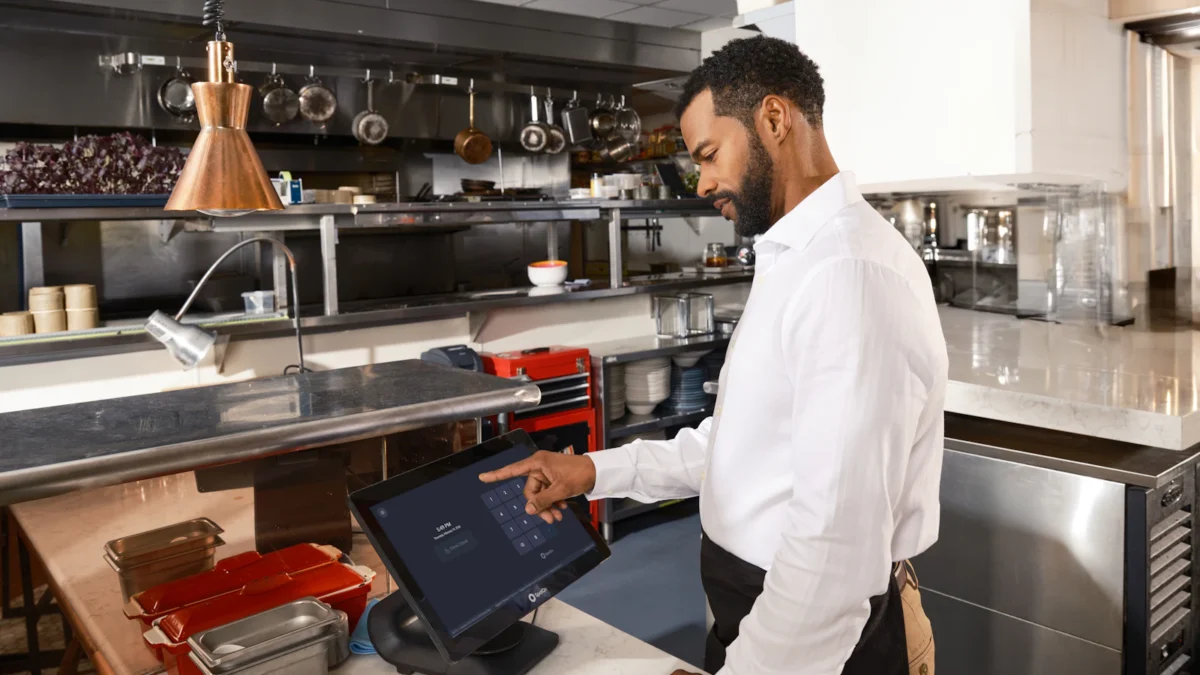
A KDS replaces the paper ticket with a screen at each station. Orders appear the moment they are sent, from the counter POS, QR orders, kiosks, online orders and delivery platforms. Cooks tap to mark items as started or done, and the order moves across the screen or disappears when it is complete.
A typical KDS offers:
- Station routing. Each screen shows only what that station needs to make, while an expeditor screen at the pass can see the whole order.
- Prioritisation. Orders can be reordered or flagged, so a delayed table or a rush order moves up.
- Prep timers. Each order shows how long it has been waiting, and colours usually change as it ages.
- Live changes. Modifications and voids update the existing order on screen rather than printing a new slip.
- History. Completed orders can be recalled, and prep times feed into reports.
The trade-off is that a KDS depends on screens, mounts and a network in the kitchen, and cooks need a short period to get used to tapping rather than tearing.
Speed, accuracy and ticket tracking compared
| Factor | Kitchen printer | Kitchen display system |
|---|---|---|
| Order arrival | Prints at the assigned printer | Appears on the assigned screen |
| Changes and voids | New slip prints; cook must match it to the original | Existing order updates on screen |
| Lost tickets | Possible: paper falls, tears or gets wet | Orders stay on screen until marked done |
| Order age | Only what is printed on the ticket | Live timers per order |
| Prioritising | Manual: move tickets on the rail | Flag, reorder or bump orders on screen |
| Multi-station coordination | Separate slips per station; the pass pieces them together | Station screens plus an overall view of each order |
| Prep-time reporting | Not available | Available from bump times |
| Ticket with the food | Yes, the slip travels with the plate or bag | No, unless a printer is added at packing |
| Learning curve | Minimal | Short, but needed |
Neither option is faster by default. A well-run printer kitchen can move quickly. The difference shows at volume: when dozens of orders arrive from several channels at once, a screen that updates and ages each order is easier to keep in order than a rail full of slips.
Costs compared
We have not found published kitchen hardware prices we can cite, so this comparison is qualitative. Ask vendors for itemised quotes.
- Upfront. A thermal kitchen printer is usually the cheaper device per station. A KDS needs a screen and a suitable mount for each station, and sometimes a bump bar or protective housing.
- Running costs. Printers use paper rolls continuously and need occasional repair when heads wear or jam. A KDS uses no paper but may carry a software fee, depending on how your POS plan is structured.
- Hidden costs. Lost or misread tickets cost remakes and refunds. That is hard to put a number on, but it is often the main reason kitchens switch to screens.
- Replacement. A screen damaged by heat or water can cost more to replace than a printer. Protection and placement matter more than the device itself.
To see how kitchen hardware fits into a full setup, use the POS cost calculator or read our POS cost guide.
Hot, wet kitchens: hardware considerations
Singapore kitchens are hot and humid, and many run woks, steamers and fryers side by side. Before you choose, walk each station and think about the device that will sit there.
- Heat. Keep screens and printers away from the direct heat of woks, grills and fryers. Heat shortens the life of screens and printer heads alike.
- Steam and grease. Steam condenses on screens and inside printers. Grease builds up on touchscreens and makes them harder to use and read. Choose positions where cooks can see the device without it sitting in the plume.
- Water. Dishwashing areas and wet prep stations splash. Paper tickets turn to pulp; unprotected screens and power points are a risk.
- Mounting. Wall or overhead mounts keep devices off the counter and out of the way of pans. Make sure power and network cables are secured and away from water.
- Visibility. Check the screen or ticket can be read at a glance under kitchen lighting from where the cook actually stands.
- Network. A KDS relies on the kitchen having a stable connection to the POS. Ask what happens if the internet or Wi-Fi drops mid-service.
Hybrid setups
You do not have to choose one for the whole kitchen. Many kitchens mix the two, station by station.
- Screens at hot stations, printers at packing. Cooks work from a KDS; a printer at the pass or packing station prints a ticket to go with each takeaway or delivery bag. This is common in cloud kitchens where most orders leave in a bag.
- Screen in the kitchen, printer at the bar. A bar with a short drinks list may prefer a printer, while the kitchen, with more items and modifiers, benefits from a screen.
- Printer as a backup. Some kitchens keep a printer connected alongside a screen so tickets can still be produced if a screen fails.
Cloud printing makes hybrid setups easier. With Epson cloud printing, the POS can send tickets to several printers across the kitchen, bar and packing area without each one being tethered to the POS terminal, so you can add or move a printer as the layout changes.
Bilingual tickets for kitchen teams
In many Singapore kitchens, front-of-house staff take orders in English while some cooks read Chinese more comfortably. Mistakes creep in when a cook has to translate an item name or a modifier such as “less spicy” or “no spring onion” in their head during a rush.
Printing or displaying item names and modifiers in the kitchen team’s language removes that step. When comparing systems, check:
- whether each menu item and modifier can carry a Chinese name as well as an English one;
- whether kitchen tickets and screens can show the Chinese name, the English name or both;
- whether the language can be set per station, so the bar and the kitchen can differ;
- whether Chinese characters print clearly on your printer model.
Decision checklist by kitchen type
| Kitchen type | Usually suits | Why |
|---|---|---|
| Small café or kiosk, one station | Printer | Low volume and one station; a KDS adds little. |
| Full-service restaurant, several stations | KDS, or hybrid | Coursing, modifiers and changes are easier to manage on screen. |
| Quick-service or food court with many channels | KDS | Counter, QR, kiosk and delivery orders arrive together; timers keep them in order. |
| Cloud kitchen or delivery-heavy outlet | Hybrid | Screens for cooking, printed tickets to label bags. |
| Bar | Printer, or hybrid with the kitchen | Short drinks list; a printer is often enough behind the bar. |
Then ask yourself:
- Do orders arrive from more than one channel at peak?
- Are lost or misread tickets causing remakes?
- Do you need to know how long dishes take to prepare?
- Does each order need a paper ticket to travel with it?
- Is there somewhere safe to mount a screen at each station?
- Does your kitchen team need tickets in Chinese?
If you answered yes to the first three, a KDS is likely worth it. If the fourth is yes, keep at least one printer.
Where ChaChaCha fits
ChaChaCha, powered by AppsPOS, supports both approaches. The kitchen display system offers station routing, order prioritisation and prep timers. Epson cloud printing sends tickets to multiple printers, so you can run screens at some stations and printers at others. The interface and kitchen tickets are available in English and Chinese.
Orders from the counter POS, QR ordering, the self-order kiosk, the online ordering page and GrabFood all reach the kitchen through the same system. The POS keeps taking orders if the internet drops and syncs later. Hardware is supplied by AppsPOS as part of the package, and pricing is quote-based. See how this works for a restaurant, cloud kitchen or bar, or contact us to plan your kitchen layout.