Key takeaways
- QR ordering moves the ordering work to the customer’s phone and suits seated outlets. Kiosks suit queues and takeaway. A staffed counter suits complex orders, older customers and very small spaces.
- None of them is best everywhere. Match the mode to your concept, your customers and your labour situation.
- Most outlets combine modes: a kiosk plus a counter, or QR at tables plus staff for help.
- Whatever you choose, every mode must feed one POS and one kitchen queue, or you create more work than you save.
The three ordering modes in brief
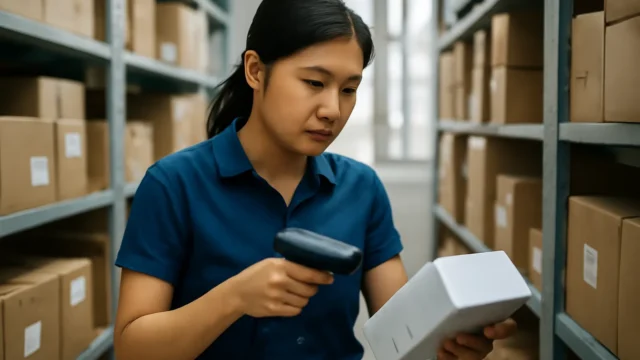
Counter ordering is the traditional model. A cashier takes the order on the POS, takes payment and passes the order to the kitchen. It needs a staff member for every open till but handles questions, special requests and cash easily.
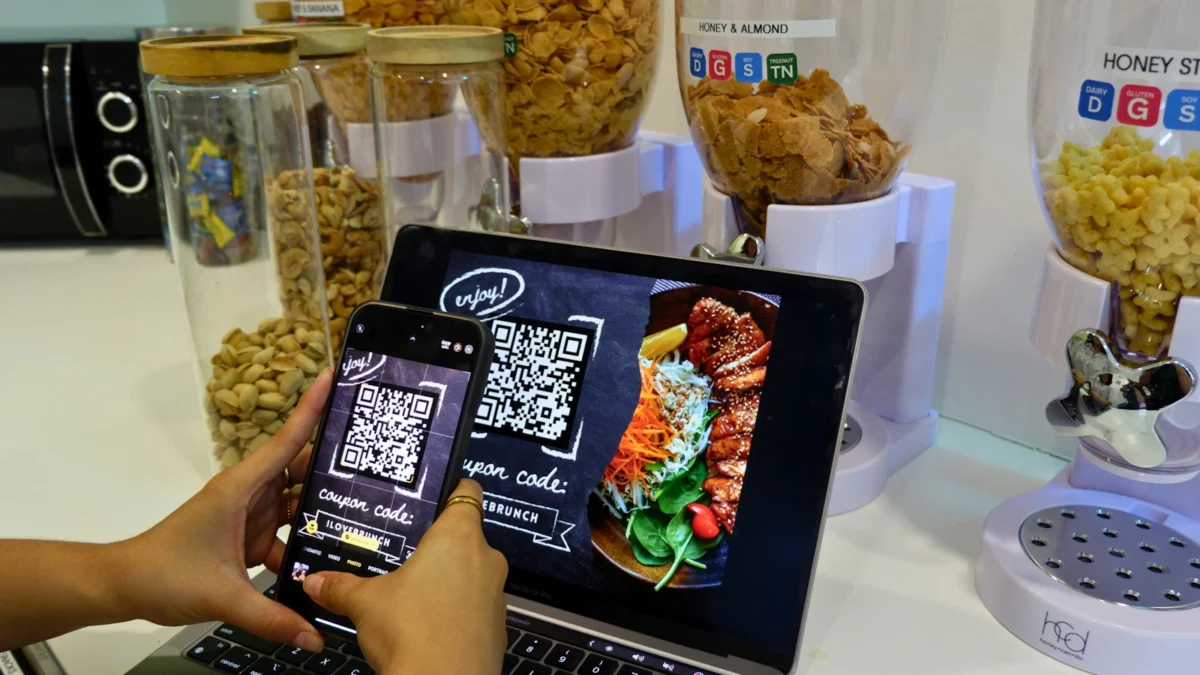
QR ordering puts a code on each table or at the entrance. Customers scan, browse the menu on their phone, order and usually pay. For dine-in, the order is tied to a table. For pre-order, customers order, pay and collect. Our QR ordering guide covers setup in detail.
Self-order kiosks are touchscreens, usually near the entrance, where customers build their order and pay by card or e-wallet before taking a number. Our self-order kiosk comparison looks at the options on the market.
Labour: who does the ordering work?
Labour is the main reason Singapore outlets look beyond the counter. Some also consider service robots that run food to tables. Each mode shifts the work differently.
- Counter: one staff member per open till at peak. That person also handles payment, questions and complaints.
- QR: customers do the ordering and paying on their own phones. Staff still run food, clear tables and help customers who get stuck, but order-taking largely disappears.
- Kiosk: customers order and pay at the machine. Eats365, for example, describes its kiosk as needing “no staff required for the entire ordering procedure” (Eats365 kiosk page). In practice, most outlets keep someone nearby at the start to help first-time users and handle cash.
The labour saving is real, but it is not zero-staff. Plan for someone to watch the kiosk area or answer questions from tables, especially in the first few weeks.
Speed and queues
A counter moves as fast as the cashier. At lunch, one till becomes the bottleneck. Adding a second till needs a second person.
Kiosks let several customers order at once. Two or three kiosks can take orders in parallel while the kitchen works. The limit shifts from ordering to cooking, which is where you want it.
QR ordering removes the queue entirely for seated customers, because they order from their tables. It works less well for grab-and-go where customers do not sit down, although a pre-order page helps office crowds order ahead.
Upselling and average spend
Screens are consistent at suggesting add-ons. A kiosk or QR menu can prompt “add a drink” or “upgrade to a set” on every order, and it never forgets. Eats365 says its kiosk is designed to drive revenue through automated upselling and cross-selling, prompting customers with add-ons and modifiers (Eats365).
We have not seen independent Singapore data on how much spend rises, so treat any vendor figure with care and measure it yourself. Compare average bill size by channel in your POS reports for a month before and after.
Counter staff can upsell well, but results vary by person and by how busy they are. Good photos and clear modifiers on a screen often do better than a tired cashier at 12.45pm.
Customer mix and accessibility
Think about who your customers are:
- Office workers and students are usually comfortable with QR and kiosks.
- Older customers may prefer to order from a person, pay cash or ask questions. Keep a counter or a staff member available.
- Tourists benefit from picture menus and multiple languages on screen.
- Families and groups ordering many items like QR at the table, where everyone can add from their own phone. Some restaurants put a tablet on each table instead; our guide to table tablets weighs the trade-offs.
- Customers with complex requests (allergies, heavy customisation) may still want to talk to someone.
Also consider customers without a smartphone or with a flat battery. A QR-only outlet needs a fallback.
Space, hardware and cost
QR ordering needs almost no floor space: printed codes and the customer’s phone. The cost is mostly software. A counter needs a till, a payment terminal and a person. Kiosks need floor or counter space for each unit, power, network and a payment terminal.
Hardware varies widely. Eats365 says its iPad kiosk needs “just an iPad, a stand and a connected printer”, while its Android kiosk is a single unit with a large screen, ticket printer and integrated payments (Eats365). Qashier bundles its platform at $5 a day, covering up to three devices per store across terminals, kitchen displays and kiosks, with terminals charged extra per day (Qashier pricing). Other vendors quote per package.
For a realistic budget, see our guide to self-ordering kiosk costs in Singapore, and get quotes that include hardware, software, payment rates and support.
Decision table by concept
| Concept | Best primary mode | Useful second mode | Watch out for |
|---|---|---|---|
| Hawker stall | Counter with PayNow | QR pre-order for regulars | Very limited space; cash-paying older customers. |
| Food court stall | Counter or shared kiosk | QR pre-order | Landlord rules on hardware and payment. |
| Quick-service restaurant | Kiosk | Counter for cash and help; online pre-order | Kitchen capacity once queues move faster. |
| Café with seating | QR at table | Counter for takeaway and coffee regulars | Customers who want to chat to the barista. |
| Full-service restaurant | Staff with handheld or POS | QR for top-up orders and payment | Keeping hospitality personal. |
| Bar | Staff and tabs | QR for rounds at tables | Age checks and tab control. |
| Cloud kitchen with pick-up | Online ordering page | Kiosk at pick-up point | Channel reconciliation. |
Combining modes without creating chaos
Many outlets use two or three modes. A quick-service chain might run kiosks for most customers and keep one counter open for cash and help. A café might run QR at tables and a counter for takeaway. That works well, provided a few rules are followed:
- One menu. Prices, modifiers and sold-out items must update on every channel at once.
- One kitchen queue. Orders from the kiosk, QR and counter should appear together, in the order they were placed, routed to the right station.
- One report. Sales by channel should come from the same POS so you can see which mode is working.
- Clear signage. Tell customers where to order and where to collect.
If each mode comes from a different vendor, check exactly how orders reach the POS. Manual re-entry at peak cancels out the labour saving.
Rolling out a new ordering mode
Switching modes changes how customers and staff behave, so treat it as a small project rather than a hardware delivery.
- Measure first. Record queue length at peak, average bill size, orders per hour and front-of-house hours for two weeks. Without a baseline you cannot tell whether the change worked.
- Fix the menu on screen. Photos, short names, clear modifiers and sensible default options matter more on a screen than on a menu board. Our guide to designing a self-order kiosk menu goes into layout and upsell prompts. Remove items that cause confusion.
- Train staff to help. For the first few weeks, have someone near the kiosk or on the floor showing customers how to scan and pay.
- Keep a fallback. A counter till or a handheld for customers who prefer a person, pay cash or have problems with their phone.
- Review after a month. Compare the same numbers by channel in your POS reports, ask staff what is slowing them down, and adjust the menu and signage.
Kitchen capacity is the most common surprise. When ordering speeds up, orders arrive in bigger waves. Check that your KDS routing and prep stations can keep up before you add a third kiosk.
How ChaChaCha fits
ChaChaCha, powered by AppsPOS, runs all three modes from one system. The counter POS covers table management, split bills, tabs, modifiers and staff permissions, and keeps taking orders if the internet drops. QR ordering supports dine-in (scan, order, pay) and pre-order (order, pay, collect). The self-order kiosk has a built-in card terminal, and hardware is supplied by AppsPOS as part of the package.
All orders go to the same KDS with station routing and prep timers, and payments cover PayNow, PayLah!, NETS, cards and GrabPay. A queue system with SMS notifications and a digital queue display helps collection points. Pricing is quote-based and AppsPOS is approved under the EDGE Grant; see our grant guide or contact us to plan which modes suit your outlet.